07. Stab?!?

No, we’re not talking about stabbing!
No actual stabbing here - what we’re doing is stabilizing our footage.

Not stabbing, stabilization!
There are many reasons your camera might be a little wobbly - wind, moving the camera, something colliding with your tripod.
Stabilization allows us to make sure that our video won’t make people feel ill by moving around too much.
Autopano Video will attempt to calculate the movement of the camera and stabilize it. But, before we perform this analysis and correction, we should first manually align the horizon.
Horizon Correction
Unless you are very lucky, you’ll need to manually correct the horizon in your stitched footage. This is easy! Just click and drag vertically in the Realtime Preview window until the horizon begins to look correct. See the image below.
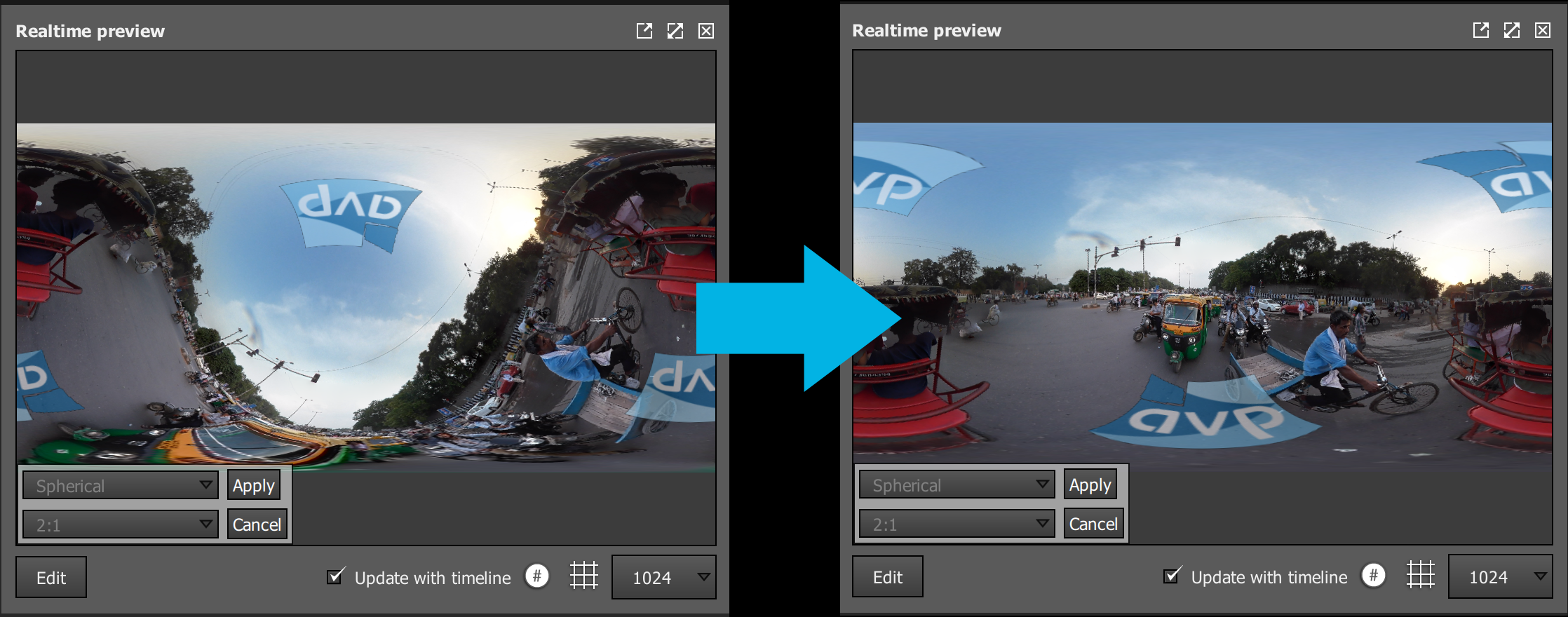
Click and drag vertically to align the horizon. Click and drag horizontally to set the horizontal center.
You should note that the vertical alignment depends on where you start dragging with your mouse. Think of it like smudging the image around until the horizon looks correct.
If you want to be precise, you can click the grid button to help with your alignment.
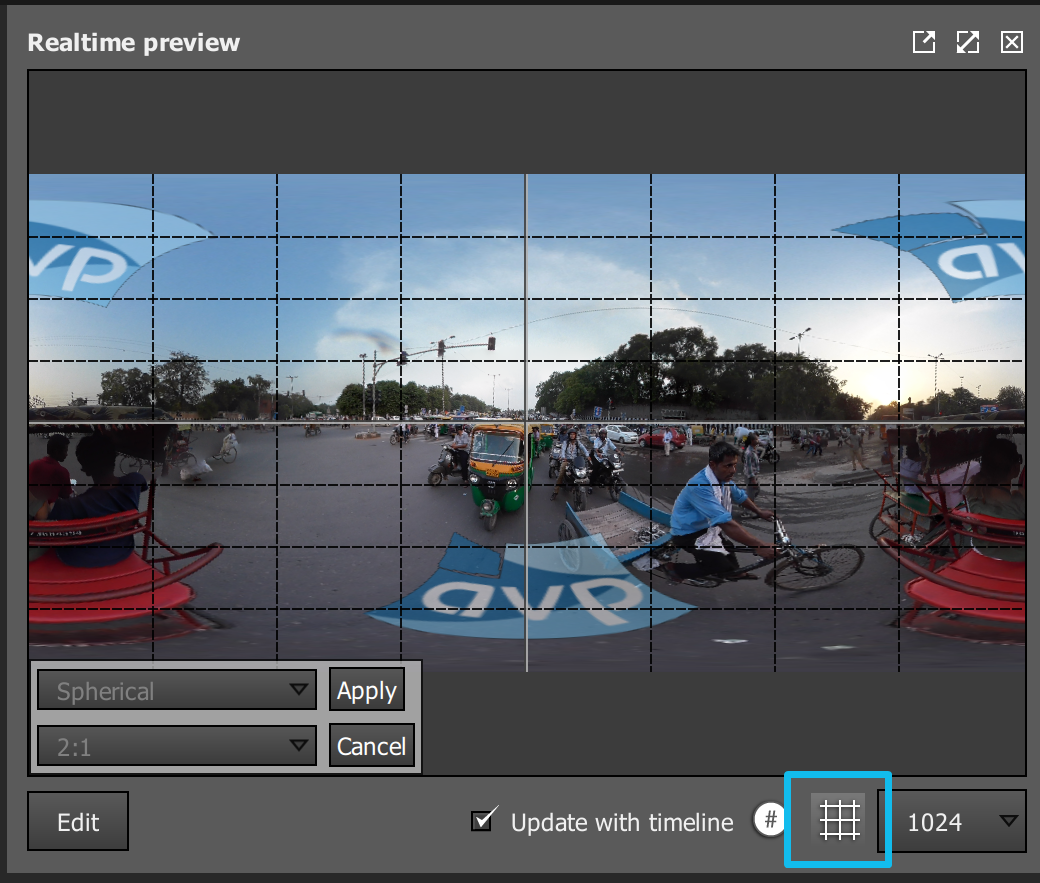
Turn on the grid for a more accurate horizon alignment.
When you are happy with your horizon adjustments, **be sure to click the Apply button to commit your changes! **
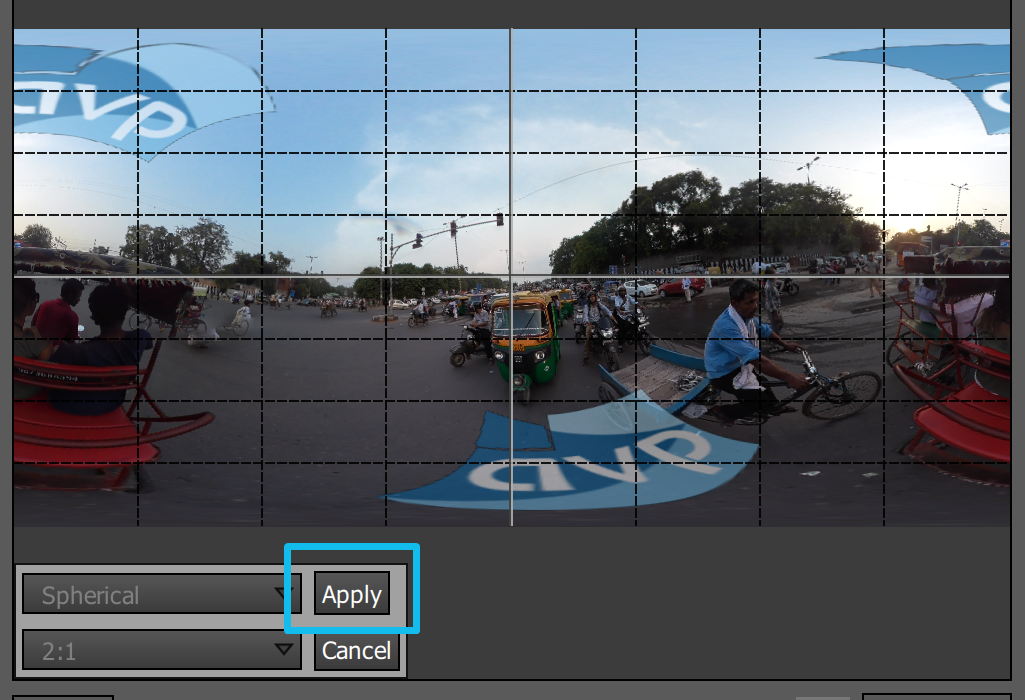
Be sure to Apply your changes!
Stabilization
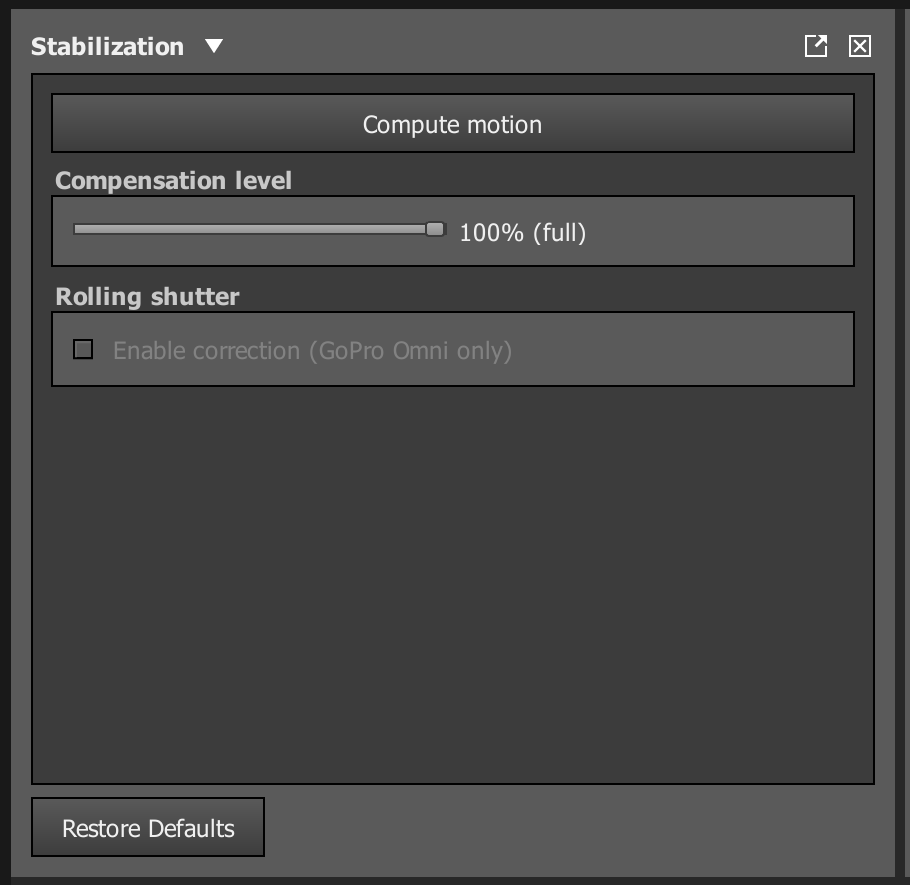
Once your horizon is adjusted, just click Compute motion